Pixel Art AI Prompts: Make Cleaner Retro Characters and Worlds
Create pixel-art-style AI images with simple silhouettes, limited palettes, and crisp edges. Learn what still needs manual cleanup.
 Sumit Singh RathoreUpdated 3 min read
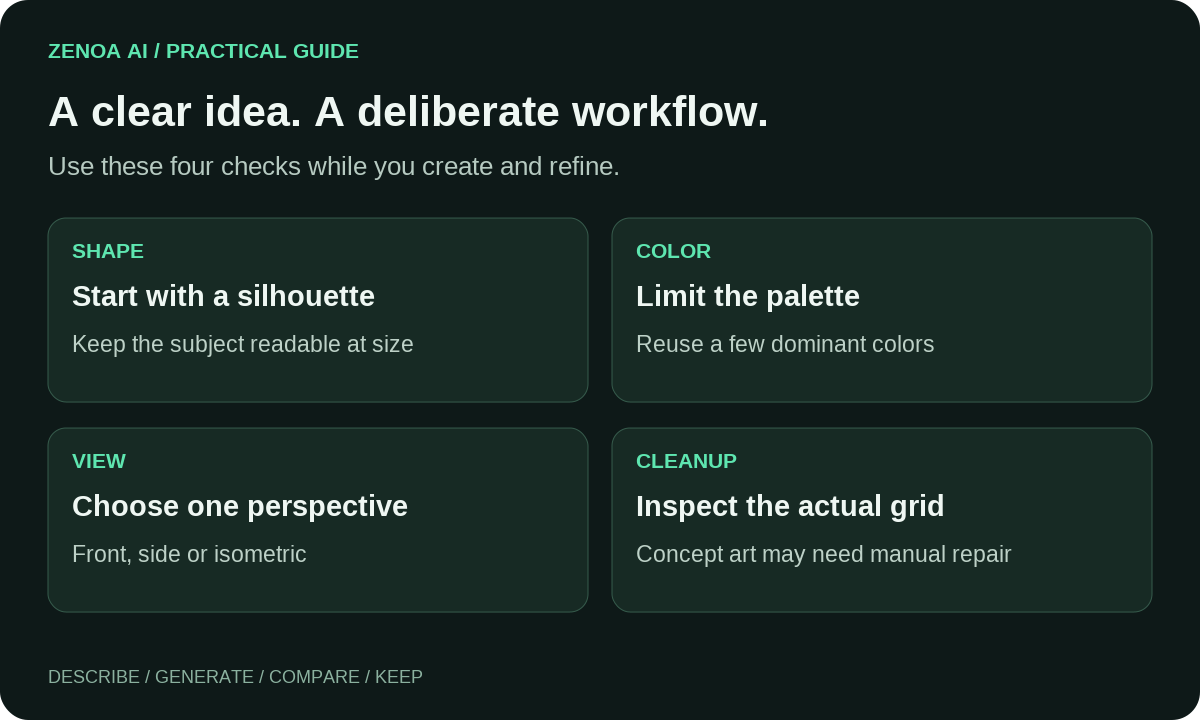
For cleaner pixel-art-style AI images, ask for simple silhouettes, a limited palette, and consistent square pixel shapes. Start with a small scene or one character. A generated retro-looking image is a concept; it may still need manual cleanup before it works as a game asset.
What separates pixel art from a blurry small image?
Pixel art uses deliberate blocks of color and readable shapes. A low-resolution photograph is simply a small photograph. Prompt for a designed pixel-art look rather than only adding “low resolution.” At full size, check whether the blocks have consistent edges or whether the image mixes pixels with smooth painting.
An AI generator may imitate the appearance without maintaining a strict pixel grid. That matters if the image must align with an existing game or icon system.
Start with one readable subject
Try this character concept:
A tiny original woodland wizard with a tall blue hat and a glowing amber staff, front-facing full-body character, crisp square pixels, limited navy teal and gold palette, simple silhouette, plain background, retro game-art concept
Keep accessories large enough to remain visible. An elaborate belt, three necklaces and a tiny embroidered pattern can collapse into noise when reduced.
For a scene, use a similarly focused brief:
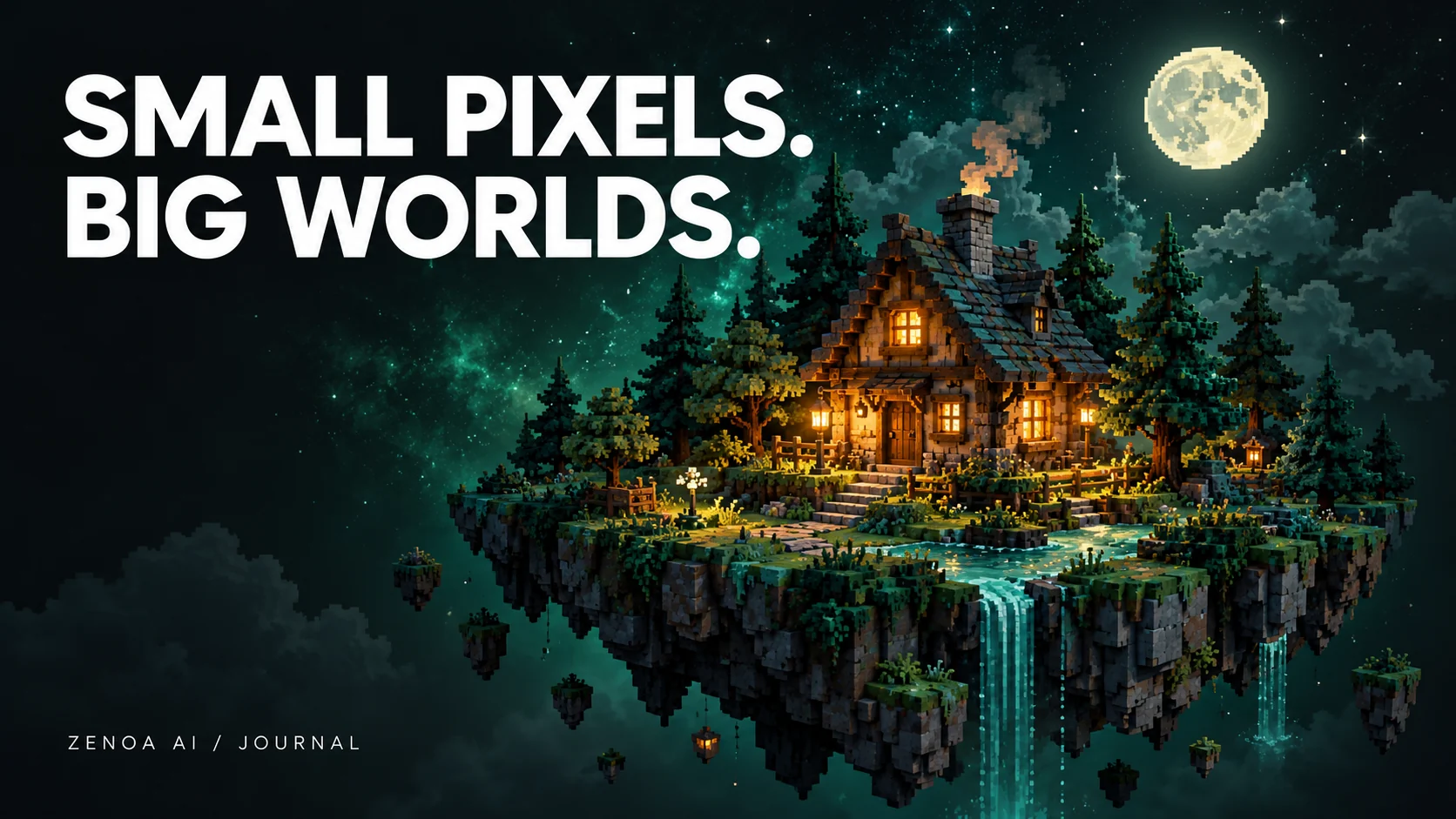
A small woodland cottage with two warm windows beneath pine trees, night sky, limited deep teal and amber palette, crisp pixel clusters, simplified shapes, retro adventure-game background concept
Which prompt details help most?
| Detail | Helpful instruction |
|---|---|
| Palette | Name a few dominant colors |
| Edge treatment | Crisp square pixels, hard color transitions |
| Silhouette | One clear subject with readable large shapes |
| Viewpoint | Specify side view, front view or isometric view |
| Scene density | Small scene with a quiet background |
Choose a viewpoint and keep it consistent across a set. A front-facing character and an isometric building can both look good individually while failing to belong in the same scene.
How do you turn a concept into a usable asset?
- Decide the actual target dimensions in your editor.
- Place the concept beside your existing art and compare scale and palette.
- Redraw or clean inconsistent pixel clusters and outlines.
- Remove the background if your use requires transparency.
- Check the result at its native display size.
For enlargement, nearest-neighbor scaling is a common way to preserve hard pixel boundaries, while smoothing filters can soften them. Inspect the result rather than assuming a resizing method fixes inconsistent source pixels. The resolution guide explains why changing dimensions does not automatically add trustworthy detail.
Avoid promises the prompt cannot keep
“Sprite sheet” does not guarantee aligned frames, stable anatomy, transparency or correct animation timing. Treat generated images as concepts until you validate each required property. A single polished cottage illustration is much easier to use as inspiration than an unverified animated character sheet.
Save the palette, viewpoint and outline description with your prompt so that the next experiment starts from the same visual brief.
Further reading
The Pillow documentation on resampling filters explains how nearest-neighbor resampling selects pixels, in contrast to filters that blend nearby values.
Frequently asked questions
Does an AI pixel-art image always use a consistent pixel grid?
No. A generator may imitate the style while mixing pixel sizes and smooth areas. Inspect the image and clean it manually when a strict grid matters.
Can I use a generated image directly as a game sprite?
Only after checking dimensions, transparency, outlines, perspective and consistency with the rest of the game. A generated concept is not automatically a production-ready sprite.
How do I keep pixel art sharp when resizing?
For clean source pixel art, nearest-neighbor enlargement preserves hard block edges. It does not repair inconsistent pixels already present in the source.