AI Image Resolution vs Upscaling: What Actually Improves Quality?
Understand pixels, aspect ratio, resizing, and AI upscaling. Learn how to inspect detail and prepare images for screens or print.
 Sumit Singh RathoreUpdated 3 min read
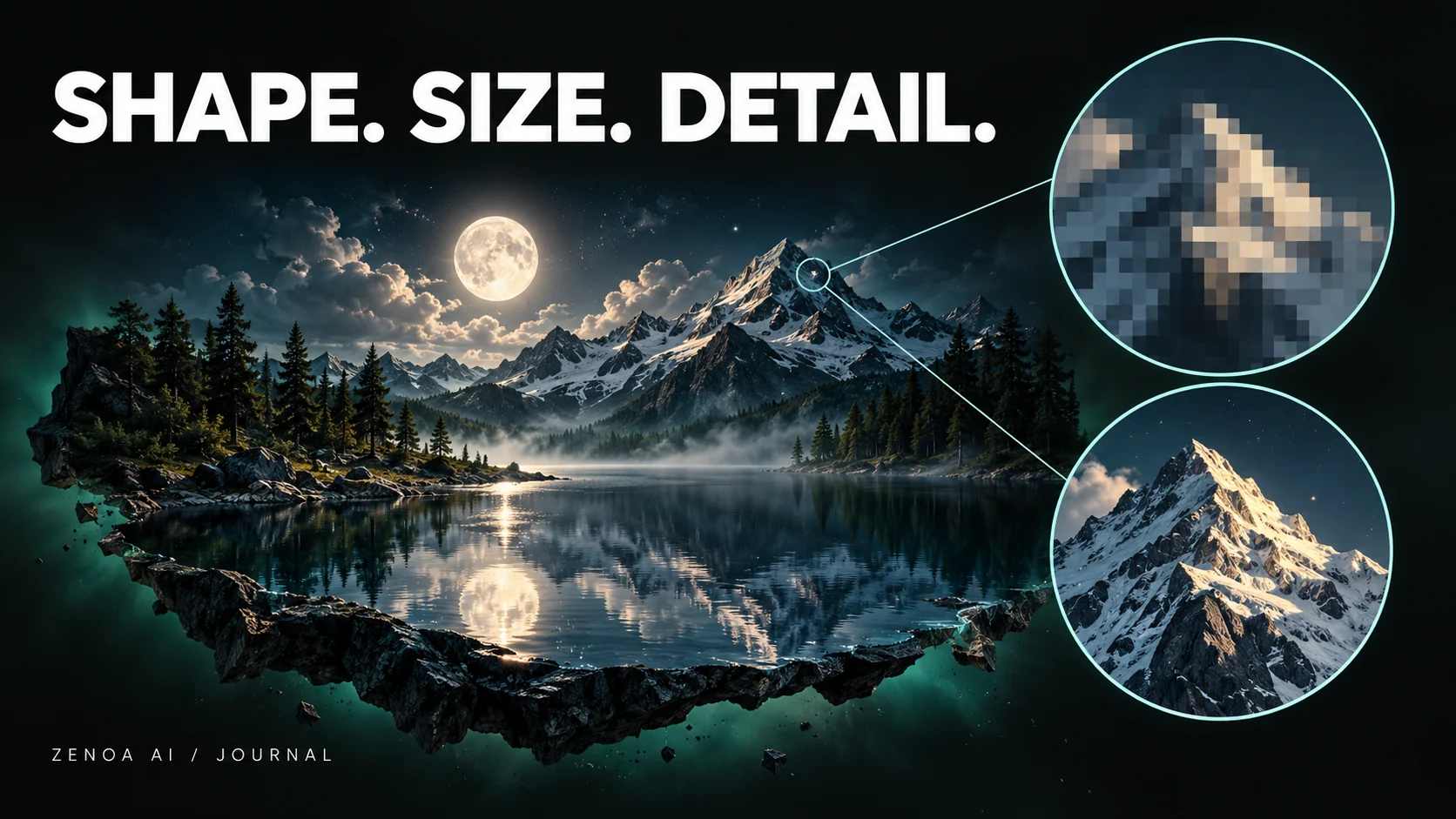
Resolution is the number of pixels in an image; upscaling increases those dimensions. A larger file can display bigger, but it does not automatically contain more accurate detail. Improve the source image first, then resize or upscale only for the destination you need.
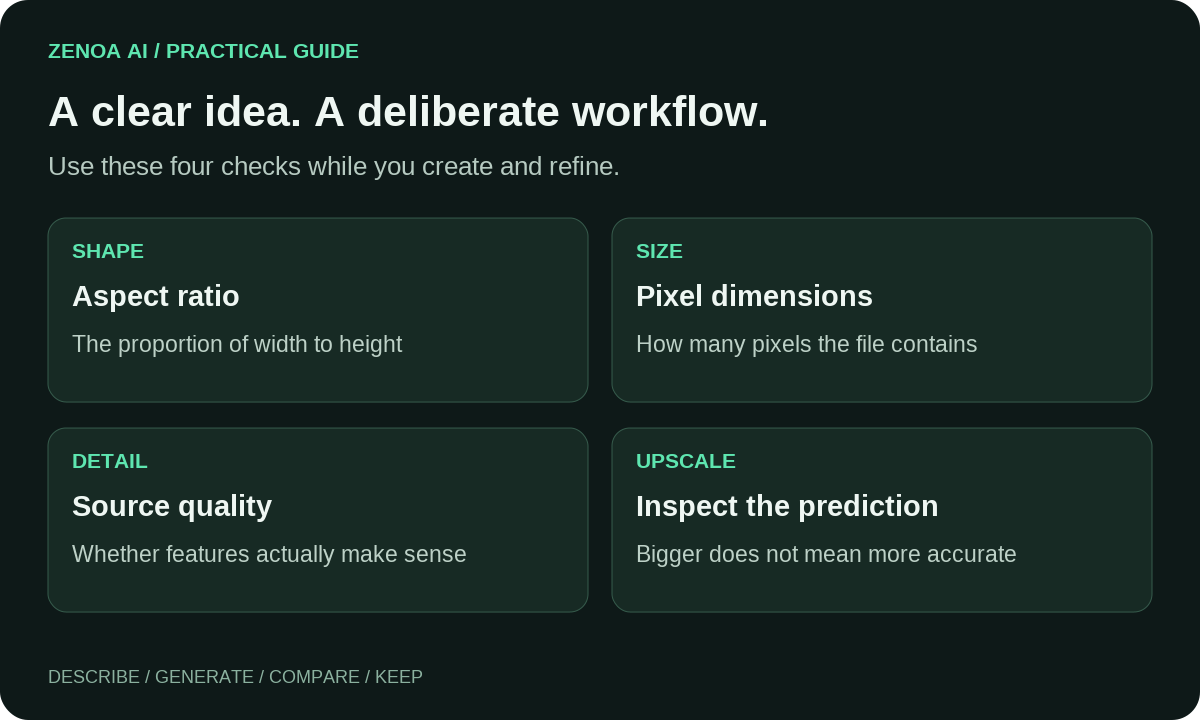
Shape, pixel count and detail are different
Aspect ratio describes the shape of a frame. Resolution describes its width and height in pixels. Detail describes what those pixels actually show. A square image can be 512 by 512 or 1024 by 1024; both have a 1:1 ratio, but the second contains four times as many pixels.
That extra space is useful only if the image data supports it. Enlarging an incoherent object does not make its structure correct. The aspect-ratio guide covers the shape decision separately.
What does each operation do?
| Operation | What changes | What it cannot promise |
|---|---|---|
| Crop | Removes part of the frame | Preserving everything at the edges |
| Resize | Changes pixel dimensions | Recovering information absent from the source |
| AI upscale | Predicts detail while enlarging | Faithful reconstruction of every small feature |
| Regenerate | Creates another interpretation | Keeping every existing detail identical |
AI upscalers can invent texture or alter edges while making an image look sharper. Inspect important features afterward, especially faces, small lettering and product labels.
Check the source before making it bigger
Open the original download and review the focal area at a one-to-one pixel view. Look for blurred edges, inconsistent structures and compression artifacts. If the basic composition or anatomy is wrong, return to the prompt or use an appropriate editor before enlargement.
Avoid using a screenshot or a repeatedly recompressed copy as your source. Keep the best original and export resized versions from that file.
Choose dimensions for the actual destination
For a screen, check the required pixel dimensions in the destination's current documentation or upload interface. Platform recommendations can change. For a wallpaper, test the phone preview rather than judging only by the file's size.
For print, pixel dimensions and print size work together. At a planning density of 300 pixels per inch, a 3000-pixel-wide image spans 10 inches. That arithmetic does not guarantee a good print: viewing distance, source quality, paper and printer requirements still matter. Ask the print provider for the specification for your job.
A practical finishing workflow
- Choose the frame and create the strongest source image you can.
- Download the original and inspect important details.
- Decide the final pixel dimensions or physical print size.
- Make a separate resized or upscaled copy if needed.
- Compare the result with the original and check for invented detail.
Upscaling can be a finishing step, not a replacement for a clear visual brief. For source problems, start with targeted prompt fixes. For pixel-art-style images, also inspect the pixel grid because smooth enlargement may undermine the intended blocky appearance.
Further reading
For the relationship between pixels, print dimensions and resampling, see Adobe's guide to image size and resolution.
Frequently asked questions
Does upscaling make an AI image more accurate?
No. Upscaling increases dimensions and may predict sharper-looking detail, but it can also invent or alter features. Check important details against the source.
Are aspect ratio and resolution the same?
No. Aspect ratio is width relative to height, while resolution is the actual pixel dimensions. Images with different resolutions can share the same aspect ratio.
How do I estimate image size for print?
Divide the pixel width by the intended pixels per inch to estimate width in inches. For example, 3000 pixels at 300 pixels per inch is 10 inches; confirm requirements with the printer.