How to Fix Common AI Image Problems With Better Prompts
Troubleshoot clutter, awkward crops, inconsistent style, and unclear subjects. Learn when to regenerate and when to use an editor.
 Sumit Singh RathoreUpdated 3 min read
Fix an AI image by identifying the main visible problem and changing the smallest relevant part of the prompt. Simplify a crowded scene, widen an awkward crop, or clarify the light source. When the task needs exact lettering or a faithful product detail, use an editor instead of repeatedly asking a general generator to be precise.
Diagnose before regenerating
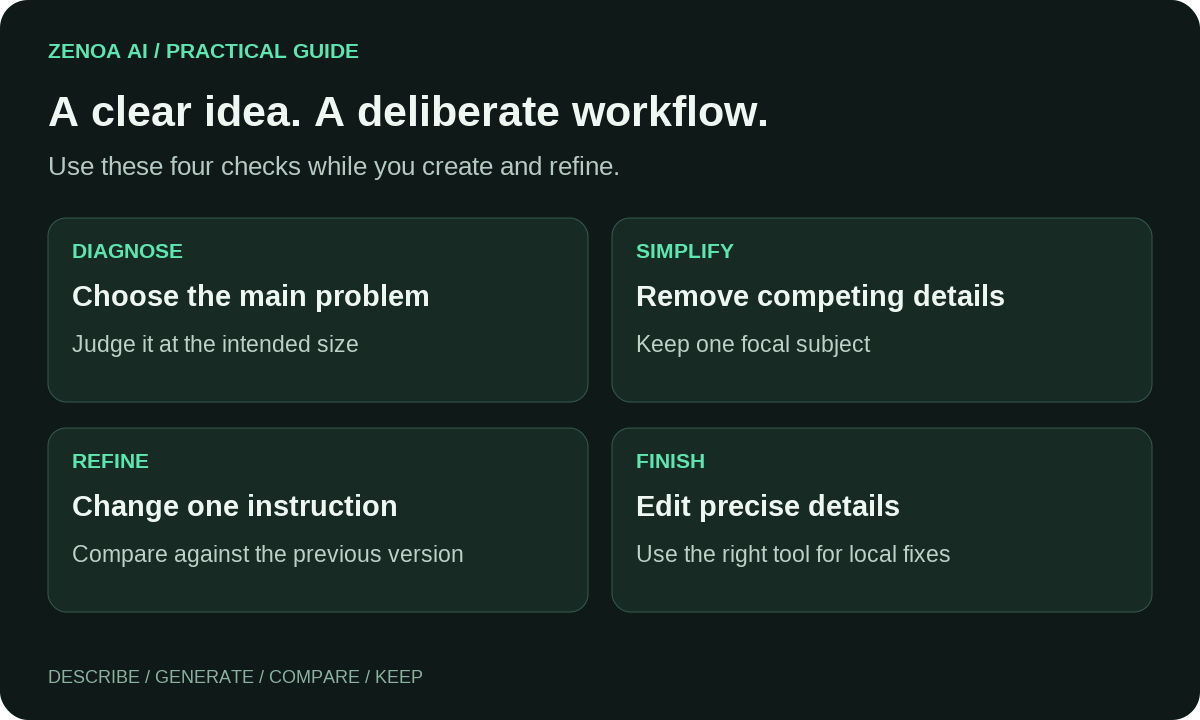
Look at the image at its intended size, then inspect it full-screen. A tiny background irregularity may not matter in a thumbnail, while a cut-off face does. Name the issue in plain language: “The subject is too small,” “The background is competing,” or “The shadows point in different directions.”
Keep the original prompt so you can compare changes. Replacing every instruction after a disappointing result makes the process harder to learn from.
Match the fix to the symptom
| Symptom | First prompt change | If it persists |
|---|---|---|
| Too many objects | Request one focal subject and a simple background | Remove secondary subjects entirely |
| Subject is cropped | Ask for the full subject and a wider view | Try a more suitable aspect ratio |
| Style feels mixed | Choose one medium and remove conflicting terms | Change the style preset |
| Lighting is inconsistent | Name one source and direction | Simplify the setting |
| Small details are incoherent | Use a closer view of fewer elements | Regenerate or edit the detail |
For framing, see AI image composition. For light, the lighting prompt guide provides a controlled experiment.
Example: simplify a crowded waterfall
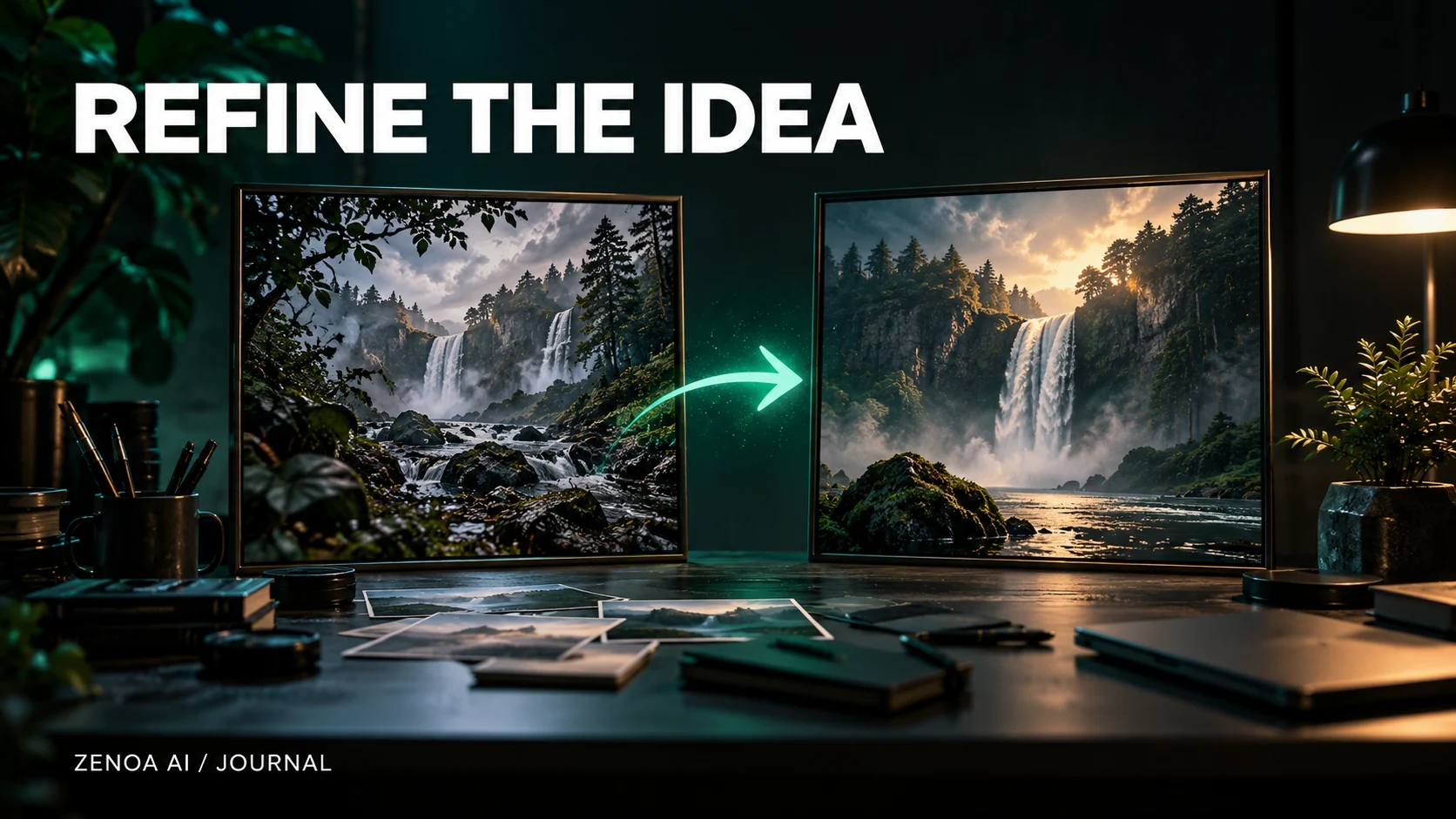
A broad prompt might ask for “an epic waterfall with a castle, dragons, a village, boats, flowers and a huge rainbow.” Even if each idea is appealing, they compete for attention.
Try:
One tall waterfall flowing between dark cliffs, a small pool in the foreground, soft mist, overcast light, cinematic landscape illustration, simple composition with a clear focal point
Once the waterfall works, add one supporting feature. Compare whether that addition improves the scene or merely increases the number of details.
When should you regenerate?
Regenerate when you want a different interpretation of the same brief or when the composition is broadly wrong. If the best result is close, make one targeted change, such as “more space above the subject” or “quieter background foliage.” Expect some unrelated details to change as well.
If the tool supports image editing or inpainting, those controls may offer a more local change. Availability and behavior vary; do not assume that a text-only generation flow can preserve all untouched parts.
When should you switch to an editor?
Use an editor for precise text, small cleanup, final cropping, and compositing a faithful source object. Adding “perfect spelling” or “correct anatomy” does not guarantee that the model will solve the issue.
Save the final prompt together with a short note about the successful correction. Over time, your prompt library becomes a record of useful fixes rather than a pile of unrelated experiments.
Frequently asked questions
What should I change first when an AI image looks wrong?
Identify the most important visible problem and change the relevant instruction. Keep other settings stable so you can judge whether the change helped.
Why does adding more detail sometimes make an image worse?
More instructions can introduce competing subjects, styles or lighting. A shorter prompt with one clear focal point can be easier for the model to interpret.
Can a prompt fix every visual error?
No. Precise lettering, exact geometry and local corrections may require an editor or supported image-editing controls rather than text-only regeneration.