Getting Started with Zenoa AI: Create Your First AI Image in 2 Minutes
A step-by-step beginner guide to Zenoa AI: sign in, write your first prompt, pick a style, adjust options and save, share or remix your results.
 Sumit Singh RathoreUpdated 3 min read
Zenoa AI turns a sentence into an image. This guide walks you through your first creation, from installing the app to saving and sharing the result.
What is Zenoa AI?
Zenoa AI is an AI image generator for Android. You describe what you imagine, choose an art style, and the app generates it in seconds. You can keep your creations in a personal library, explore what the community has made, and remix other people's prompts.
Quick start
Install Zenoa AI from Google Play
Sign in with your Google account
Open the Generate tab and type a prompt
Pick a style, then tap Generate
Step by step
1. Sign in
Zenoa AI uses Google sign-in, so there is no new password to create. Your account holds your library and your plan.
2. Write a prompt
Describe your idea in a sentence. Start with something simple, like "a serene mountain lake at sunset".
3. Choose a style
Pick from 56+ styles such as Realistic, Anime, Cyberpunk, Studio Ghibli or Pixel Art. The same prompt looks very different in each, so try a few.
4. Adjust advanced options
Open the advanced panel to set the aspect ratio and other options. The app remembers your choices for next time. Need help choosing a ratio? See AI image aspect ratios explained.
5. Generate and refine
Tap Generate. If the result is close but not perfect, change one thing in the prompt and try again.
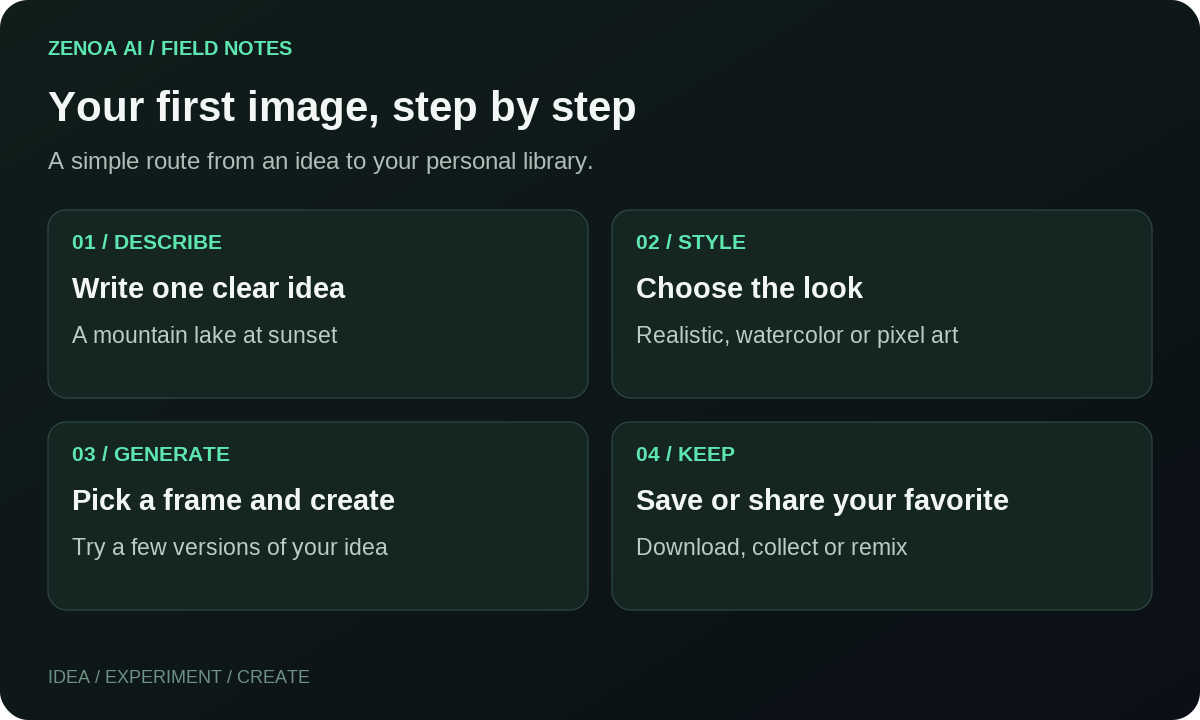
After you generate
- Download your image without a watermark
- Save favorites to your library
- Share public images with the community
- Remix any public creation by starting from its prompt
Your plan and quota
You can start for free. Your plan controls how many images you can generate and whether you can keep images private. You can see your remaining quota inside the app.
Troubleshooting
The Generate button is disabled. Make sure you have typed a prompt and are signed in.
Generation fails. Check your connection, simplify the prompt and try again.
The result is not what you expected. Add concrete detail about lighting and style, or try a different style preset.
What to do next
- Try the same prompt in three different styles.
- Browse the community feed for ideas, then remix one.
- Read 25 AI art ideas you can create today.
Ready to start? Download Zenoa AI and create your first image.
FAQ
Is Zenoa AI free? You can start for free. Paid plans raise your quota and add features like private images.
Which devices are supported? Android today.
How do I report a bug or request a feature? Email dev.zenoa@gmail.com or use the feedback option in the app.